
Magic Window is a window manager for the Windows operating system. Multi-monitor work, side-by-side comparison, virtual-desktop switching — no more dragging, no more guessing. It uses a fully customizable set of global hotkeys for snapping, thirds, quarters, cross-monitor moves, and whole-screen layouts. Move a window, and the workflow follows.
Lightweight. Lives in the tray. Starts with Windows. Search open windows, lay out the current screen or every display, and send a window to the monitor under the mouse.
Download Magic Window 1.0.0
See it work
Screenshots
What it does
Magic Window is a window manager built for the Windows operating system — it positions and arranges desktop windows. Windows Snap is fine until you need thirds, a golden-ratio split, another monitor, or another virtual desktop. It splits the job in two: move the foreground window, or lay out several windows at once.
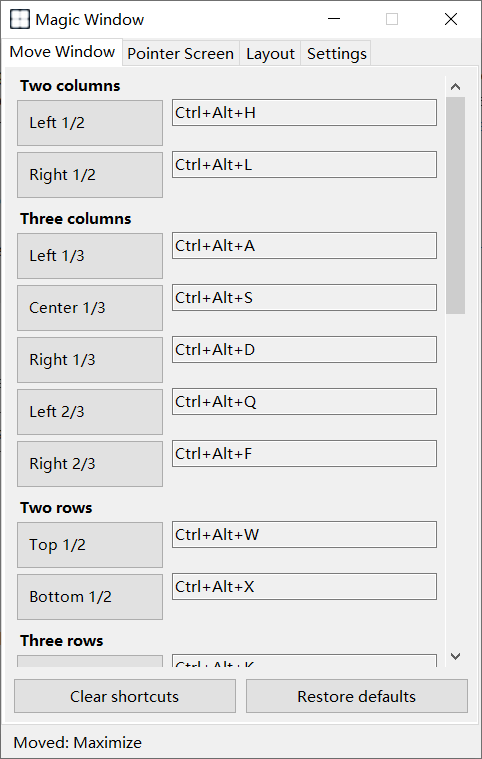
- Move window — snap the foreground window to left/right half, thirds, two-thirds, top/bottom bands, quadrants, maximize, or restore and center. Jump to the previous/next monitor, or the previous/next virtual desktop.
- Pointer screen — the same actions, always targeting the display under the mouse. Cursor on that screen, window lands on that screen.
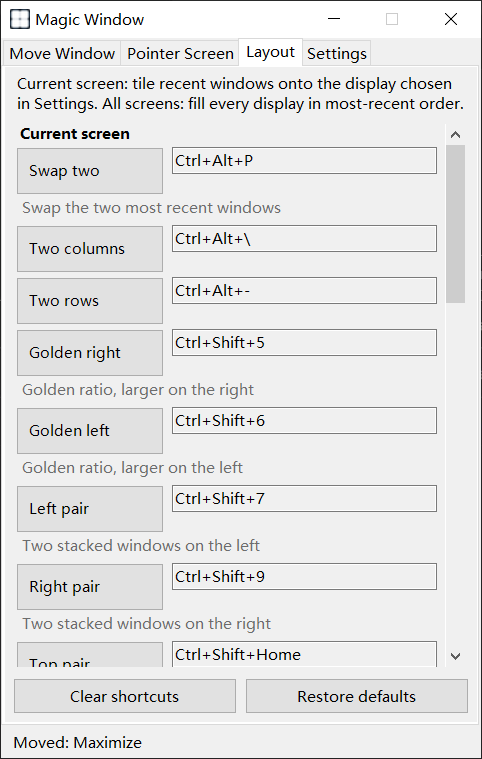
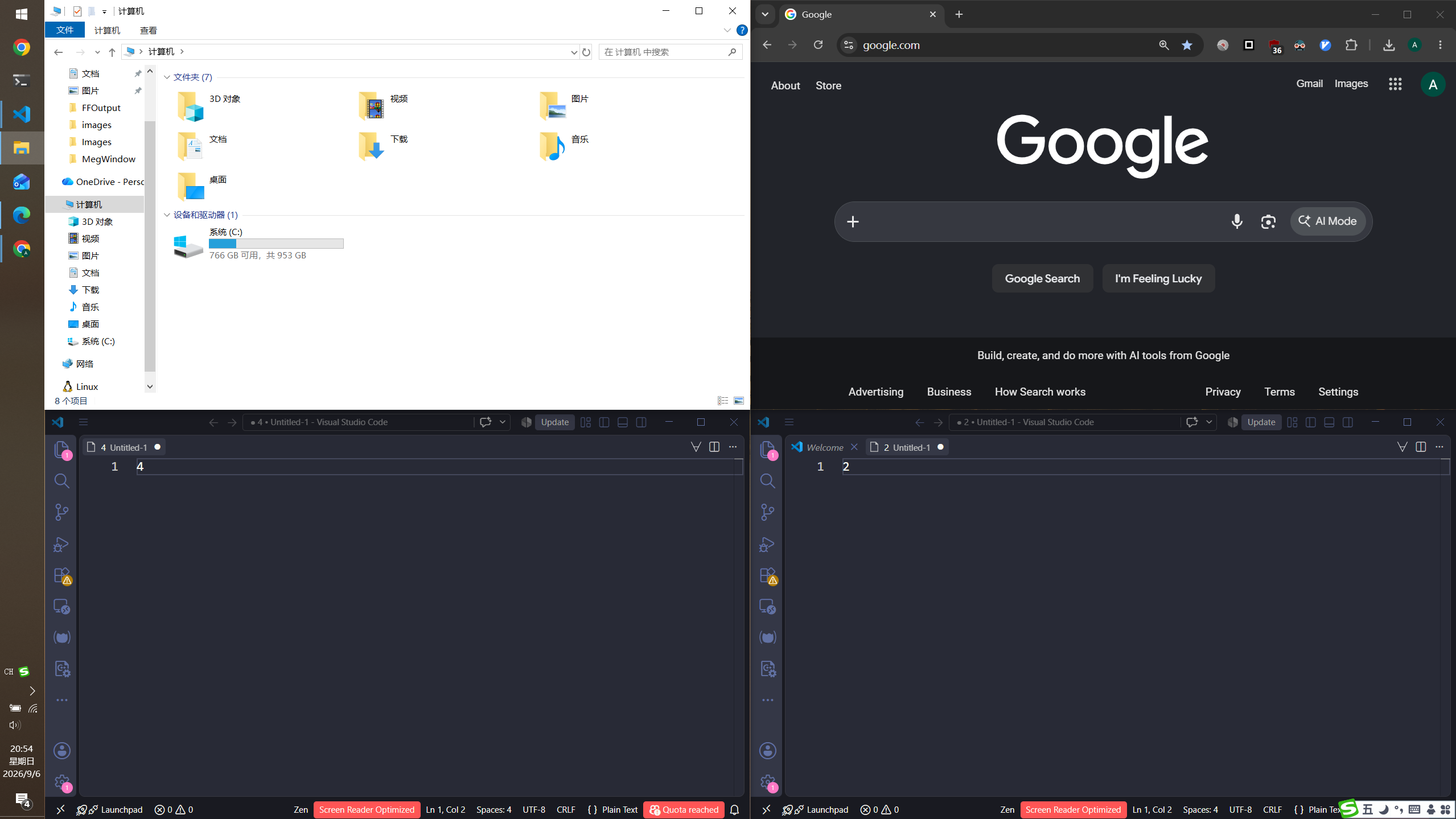
- Layout — tile recent windows on the current screen or every display: two columns, two rows, golden ratio (larger left or right), stacked pair on the left, swap the last two windows, and more.
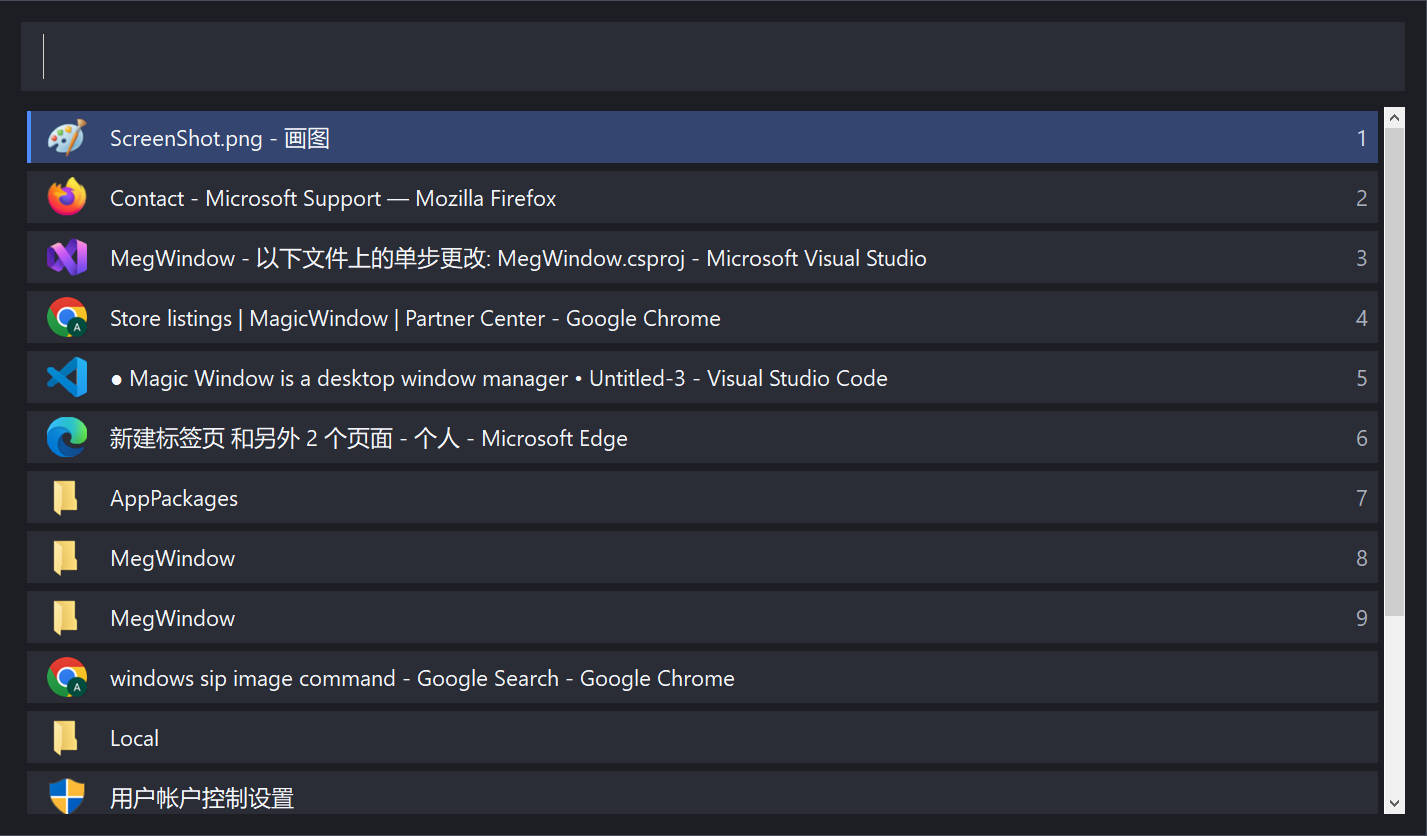
- Window search — default Ctrl+Alt+Space opens a search bar. Type a title, activate the window. Ctrl+J / Ctrl+K next/previous. The UI appears first; icons load in the background.
It lives in the tray. The main window is for hotkeys, language, and animation. Follow the system language, or lock Simplified Chinese, Traditional Chinese, English, Japanese, Korean, French, German, or Spanish. Optional move animation (about 20–1000 ms, default ~220 ms). Single-screen layouts can follow the mouse display or stay on the primary monitor.
Who it is for
Multi-monitor
Cross-screen moves, pointer targeting, fill every display.
Fixed columns
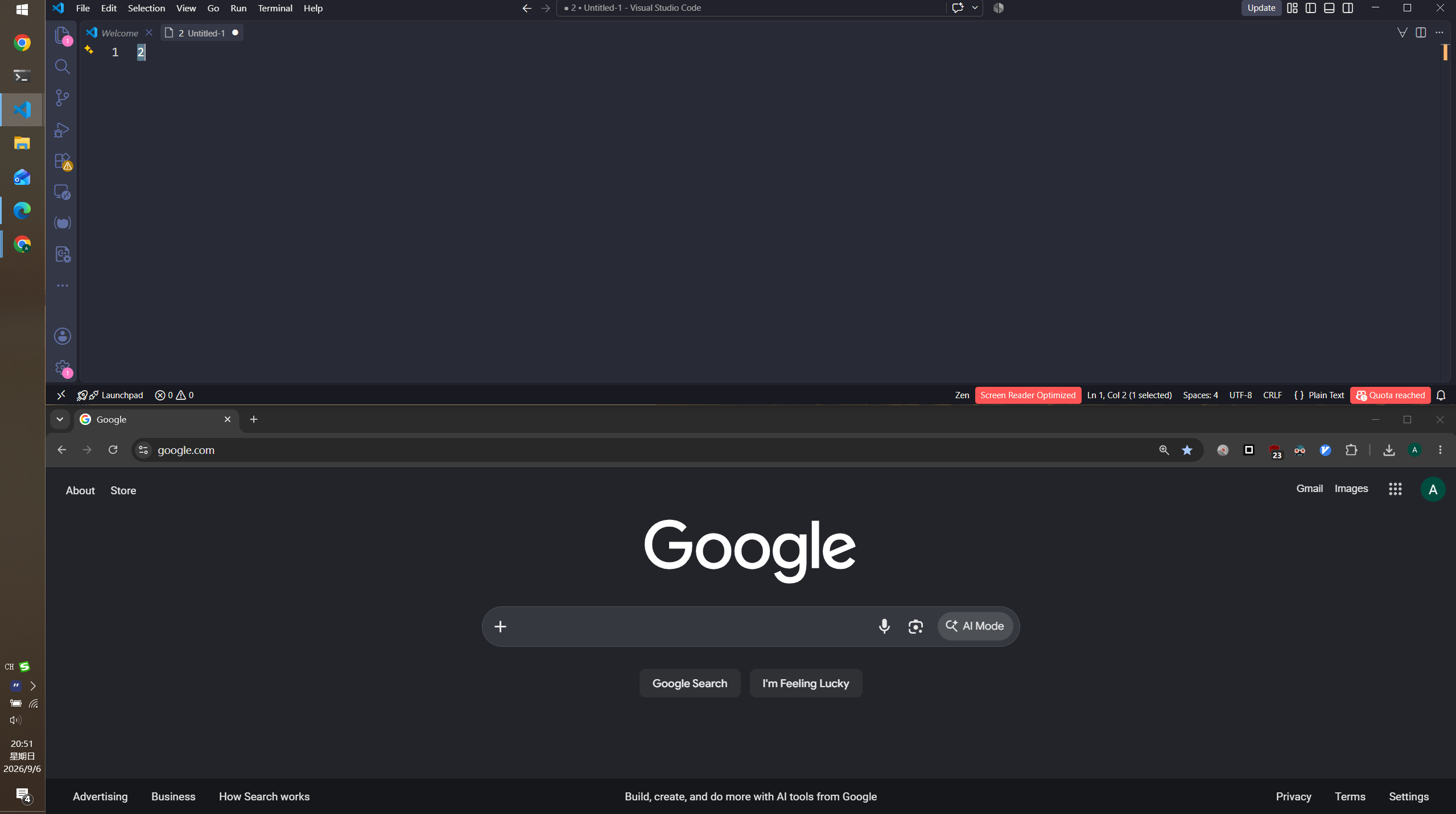
Editor + browser, sheet + document, meeting + notes.
Virtual desktops
Send a window to another desktop without switching first.
Keyboard first
Hotkeys plus search. Less mouse.
How to use it
- Install and run. The icon appears in the tray.
- Bind hotkeys for the actions you use, or keep the default search shortcut.
- Open window search and type a title to focus a window.
- For side-by-side work, lay out the current screen or all screens in one keystroke.
- To drop a window on the monitor under the mouse, use the Pointer Screen hotkeys.
Hotkey-driven Windows window management. Thirds, quarters, other screens, other desktops — one key. Lives in the tray; hotkeys do the work.